
Understanding the views
Real A11y gives you multiple ways to inspect the same page. Each view answers a different question — but they all describe the same content.
The visual layout
This is what sighted users see: a spatial arrangement of sections, text, images, forms, and links.
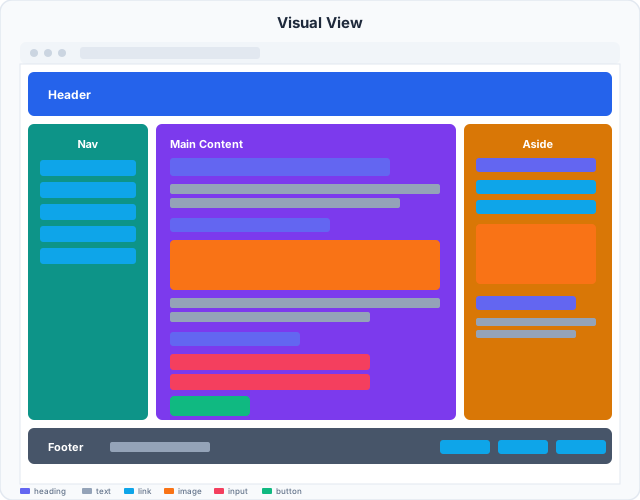
Every colored shape represents a piece of content. The colors are consistent across all diagrams below — so you can track each element across views.
A11y Tree view
Assistive technology doesn't see the 2D layout. It reads the same content as a hierarchical tree, organized by landmark roles.
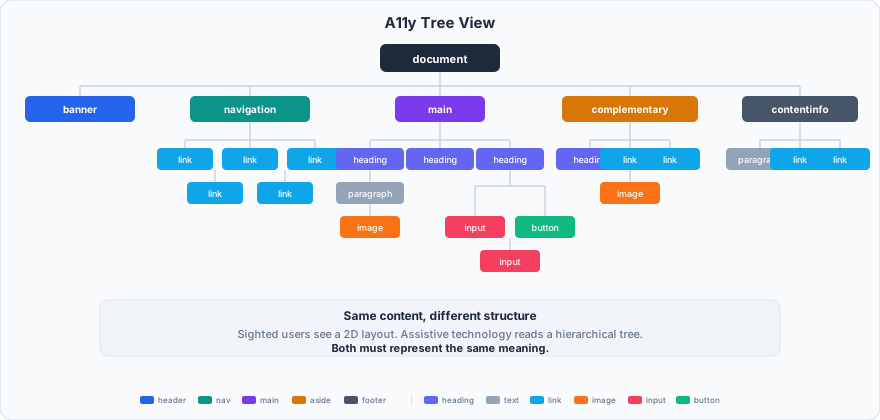
Same shapes, same colors — different structure. The tree shows what each element is (its role), what it's called (its accessible name), and where it sits in the hierarchy.
Read more about the A11y view →
Headings view
Screen reader users navigate primarily by headings. This view extracts just the heading elements and shows the document outline.
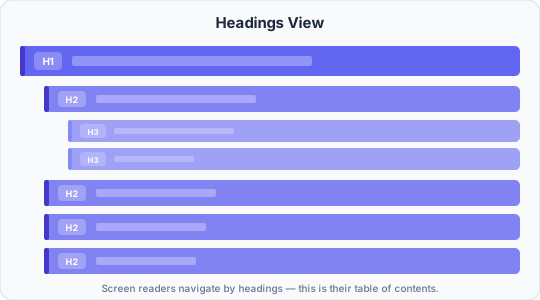
A well-structured outline has exactly one H1, no skipped levels, and a logical nesting that mirrors the page's sections.
Read more about the Headings view →
TAB order view
Keyboard users press Tab to move between interactive elements. This view shows the exact sequence — a flat, numbered list of every focusable element.
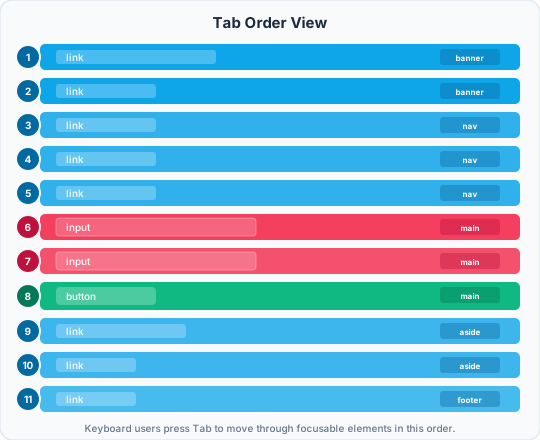
The color of each bar tells you the element type (link, input, button), and the badge on the right tells you which section it came from. The order should match the visual flow.
Read more about the TAB view →
Same content, four perspectives
| View | Question it answers | What you see |
|---|---|---|
| Visual | How does it look? | 2D spatial layout |
| A11y Tree | What does AT hear? | Hierarchical tree with roles and names |
| Headings | What's the document outline? | Heading levels as a table of contents |
| TAB order | Can keyboard users reach everything? | Flat numbered list of focusable elements |
All four describe the same page. When they agree, the experience is equivalent for everyone. When they disagree, someone is getting a broken experience.