
Semantic Navigator
Navigate the web the way your users have to.
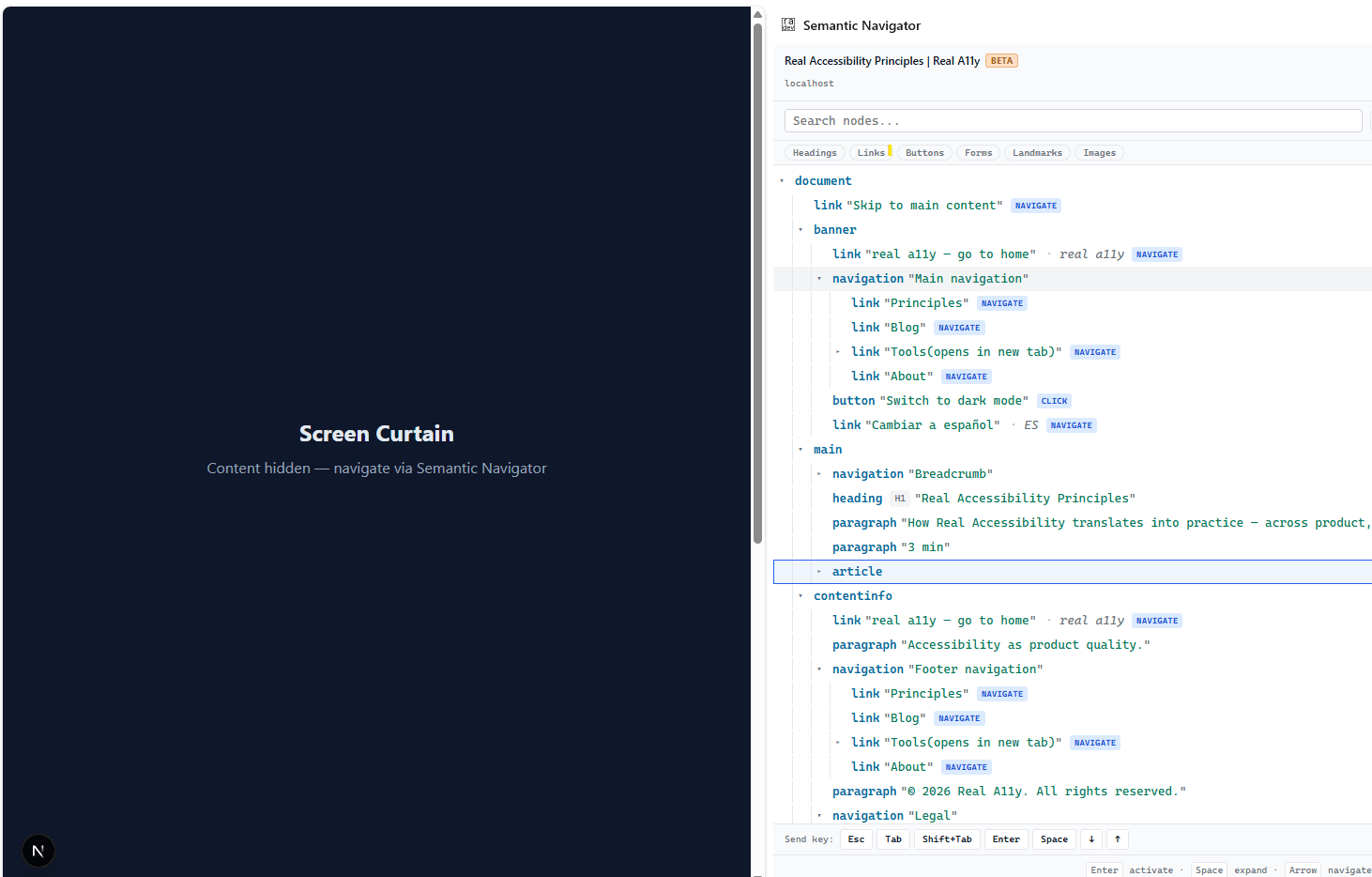
Most accessibility problems don't look like problems — until you remove the visual layer. Semantic Navigator replaces the page with its accessibility tree. You can still click, navigate, fill forms, and complete tasks. The structure is all you get.
"The more your tests resemble the way your software is used, the more confidence they can give you." — Testing Library
The more your navigation resembles how screen reader users experience your product, the more confidence it can give you.
The problem
You build, test, and ship products you have never actually experienced.
Not the way a screen reader user experiences them.
You navigate with your eyes. You click what you can see, skip what doesn't look relevant, and scan for what matters. Your users navigate with structure — headings to orient, landmarks to jump to, roles and names to understand what each element does. They hear the tree, one element at a time, in the order the DOM gives it to them.
That's not a different preference. That's a completely different product.
Most teams have never experienced their own product that way. Not because they don't care — but because nothing has ever made them sit down and try it.
The test
If you can complete the task through the accessibility tree, your users probably can too.
If you can't — that's the bug.
Try to check out. Try to book an appointment. Try to find the error message after a failed form submission. Try to close the dialog that just opened. Try to understand where you are in the page.
Do it through the tree. Without looking at the UI.
When it's hard — when you can't find the button, can't figure out what a control does, can't tell if the action worked — stop there.
That's not a usability problem. That's your accessibility bug. And your screen reader users hit it every day.
This is not a replacement for real testing
NVDA. JAWS. VoiceOver. TalkBack. These are the tools your users actually depend on. Each one has its own quirks, its own keyboard model, its own way of announcing dynamic content. None of that is simulated here.
Semantic Navigator does not reproduce what a screen reader sounds like, how it moves, or what it announces in response to focus changes. What it does is expose the raw material — the semantic tree — that screen readers consume.
Think of it as the difference between reading a recipe and tasting the dish. The tree tells you what's there. A real screen reader tells you how it's experienced.
Use this tool to catch structural problems early and often. Missing names, broken tab order, incorrect roles, unlabeled landmarks — these are findable here, in your normal development workflow, without spinning up AT.
Use real screen readers before you ship. Test with NVDA on Firefox. Test with VoiceOver on Safari. Test with JAWS if your users depend on it. There is no tool — this one or any other — that substitutes for that.
This extension makes those sessions less painful. It does not make them optional.
The screen curtain
Semantic Navigator includes a screen curtain — a single Curtain ON toggle that blacks out the entire page. Only an extension can paint over a whole browser tab.
The tree stays. The panel stays. You can still interact with the full product. The visual layer is just gone.
This is the closest a sighted developer gets to the experience. It's uncomfortable. It should be. That discomfort is information.
While the curtain is on, the focus-ring overlay is suppressed too (no point drawing on a blacked-out page) — lean on the panel's tree selection to orient yourself.
How it works
1. Open the side panel Click the extension icon in your Chrome toolbar. The side panel opens next to the current page and populates immediately.
2. See the semantic structure The page renders as an interactive tree: by default, Chromium's own accessibility tree, which is what assistive technology perceives (see native mode). In-page tree, under Show in Settings ▾, shows this extension's own reading of the page instead, as a DOM view (raw HTML elements) or an A11y view (roles, accessible names, states), picked in the toolbar.
A form field shows its value in both views. The A11y view shows the value a screen reader announces, and the DOM view shows the raw DOM value. For a <select> whose chosen option is "Spain" with value="es":
A11y view:  combobox "Country" = "Spain"
DOM view:   <select> value="es"
A slider shows its aria-valuetext in the A11y view, and a rich-text editor shows its text. A password, one-time-code or card field shows [redacted] in both views, never its contents or length. The Copy report leaves values out.
3. Navigate your product Click links, fill forms, submit, expand menus, complete flows. You're using the real product — just through its structure instead of its visual layer.
4. Find where it breaks When something is hard to locate, hard to understand, or impossible to complete, that's the test failing — not a hypothetical, not a lint warning. Something your users have been hitting silently for months.
What's unique to the Chrome extension
The extension surfaces the same engine as @real-a11y-dev/inspector, @real-a11y-dev/react, and @real-a11y-dev/storybook-addon. Everything about reading the tree is shared across those — see the panel features guide for filters, search, focus tracking, and scoping. Two things are exceptions, and only the extension's side panel has them: the live region log, and the Dialog: … bar that names a modal dialog when the tree re-roots to it.
What only an extension can give you is the handful of capabilities that require a browser extension to reach across tabs and frames. The screen curtain above is one; here are the rest:
Copy the tree as a Markdown report
The Copy ▾ dropdown in the panel toolbar puts the current view on your clipboard as a Markdown accessibility report — the button's own tooltip reads "Copy the tree as Markdown — paste into a bug report." Only the extension has this: the clipboard/export code lives solely in the extension (packages/extension/src/sidepanel/export.ts), not in the shared inspector or react packages.
Pick what to copy:
- Everything — the tree, heading outline, and tab sequence in one document.
- A11y tree / DOM tree — just the tree currently shown (the label follows your active view mode).
- Headings — the heading outline (
h1..h6). - Tab sequence — the focusable nodes in tab order.
Works under native mode too, labeled Native tree in place of A11y/DOM tree — with one permanent exception: there's no Tab sequence option. tabindex never reaches a native node (see Two producers), so there's no tab-order data to export, not merely an unimplemented one; Everything under native mode is the tree and headings only.
Every export opens with a reproducibility header, so a pasted report is self-describing:
# Accessibility report — Checkout · Example Store

- **URL:** https://example.com/checkout
- **Producer:** dom (the extension's own in-page walk)
- **Scope:** dialog "Confirm order"
- **Captured:** 2026-07-11T14:32:10.000Z
- **Tool:** Semantic Navigator 0.1.9
Producer says which engine built the tree, dom or native, so a report from one is never compared with a report from the other by mistake. On the native tree, the URL and capture time are those of the native read itself, since that tree doesn't follow the page on its own. The Scope line appears only when the panel is scoped to a subtree, so the report states exactly what it covers. Each selected view then follows as its own fenced ## section — drop the whole thing into a GitHub issue or any Markdown tracker and the person reading it can see the structure without re-running anything.
Cross-iframe tree merging
iframes are merged into the parent tree at the correct depth. The extension's background script reaches across frame boundaries (a privilege only extensions have) and stitches each iframe's locally-extracted tree onto its <iframe> placeholder in the parent. Embedded widgets, third-party flows, payment forms — all in scope.
So are the frames a page makes with no address of their own: an about:blank or srcdoc frame, and one a script writes into, which is how rich-text editors and many ad slots are built. Each is read under its own <iframe>, however many a page has, and the tree keeps up when the page writes one over again. Three kinds of frame are still left out, shown as an <iframe> marked embedded with nothing inside: a sandboxed frame without allow-same-origin, a data: frame and a blob: frame.
In-page packages (inspector, react) only see their own document and can't merge across origins. The extension is the only surface that gives you the full picture for sites that use iframes heavily.
Keyboard bar — Esc · Tab · Shift+Tab · Enter · Space · ↑ · ↓
Buttons that send a key to whatever element currently has focus on the host page. Possible only because the extension's content script can reach the page's DOM from outside.
Synthetic KeyboardEvents are untrusted (isTrusted: false), so Chrome skips their default actions. The content script therefore:
- Dispatches
keydown/keyupso page listeners still see the key. - Applies the missing defaults itself for Tab / Shift+Tab (move focus along the same
getTabSequenceorder as the panel's Tab Sequence view, scoped to an open dialog when focus is inside one) and Escape (callHTMLDialogElement.close()on the open dialog). If a page handler callspreventDefault()onkeydown, that native fallback is skipped.
Common flow: navigate to a combobox in the tree → press Enter (in the tree) to activate it → the combobox opens on the page → use the keyboard bar's ↓/↑ to move through options → Enter to select → Esc to dismiss.
Close tab — × next to the page title
Closes the panel-bound browser tab (the tab whose tree the panel is showing), not whichever tab Chrome has just activated. Handy for dismissing popups, login windows, or test tabs without reaching for the mouse. Extension-only because it uses chrome.tabs.remove.
Each Chrome window has its own side panel, which shows that window's tab and never another window's. A popup, such as a login window, has no side panel of its own: when you move to it, the panel of the window you were in shows it until it closes, so you can read it there and close it with ×. Switching tabs in that window, or going back to its page, shows the window's own tab again.
Every panel→content command stamps that bound tabId the same way — so activate, keyboard-bar keys, highlight, curtain, and pick mode all stay on the page the panel is inspecting even if you flip browser tabs mid-click.
Cross-link chips on disclosure pairs
Disclosure widgets — a button that opens a menu, a tab that controls a panel, a combobox bound to a listbox — render as two separate rows in the tree, often far apart. The relationship between them is the most useful piece of information when debugging the widget, and it's the easiest to miss.
The panel renders that relationship as paired clickable chips:
- On the trigger row:
→ <role> "<name>"pointing at the controlled element. - On the controlled row:
← <role> "<name>"pointing back at the trigger.
Click either chip and the panel expands every collapsed ancestor of the target, scrolls it to the center of the viewport, and briefly flashes its row. The chips sit outside the Tab order, so the keyboard reaches them from the selected row: Alt+J follows its first link, and pressed again moves on to the next one; Alt+Shift+J goes back to the row you jumped from, or to the row that controls this one. The key labelled J works on any keyboard layout. A jump leaves a scope or a search that would hide its target.
Two link sources, distinguished visually:
- Solid border — the link comes from an explicit
aria-controlsattribute. Properly authored disclosure pattern. - Dashed border — the link is inferred from
aria-haspopup+aria-expanded="true"plus DOM proximity, because the trigger has noaria-controls. Common in apps that skiparia-controls(Drive, Gmail, plenty of in-house component libraries). The hedged tooltip ("Likely controls …") sets the right expectation — when two unrelated menus are open at once, the inferred pairing can be wrong.
Manual refresh on tab switch — ↻ toolbar button
When you switch browser tabs, the panel clears its tree and shows the empty "Connecting…" state instead of stale content from the previous tab. Hit the ↻ refresh button (or Load tree in the empty state) to load the new tab's tree. Both requests are tagged with the panel's bound tab so they cannot race the background's activeTabId update and land on the wrong page.
This is intentional: auto-refresh on tab switch was unreliable across the long tail of pages (restricted URLs with no content script, lazy-injected content scripts that aren't ready yet, races between the panel and the content script becoming reachable). The manual refresh trades one extra click for predictability — you always know what you're seeing.
Pages the extension can't inspect
Chrome refuses to run any extension's content script on some pages — chrome:// pages (including the default new-tab page), the Chrome Web Store, and the built-in PDF viewer. There is nothing for the panel to attach to there, so instead of the "Connecting…" state it says This page can't be inspected and explains why.
You see it whenever the panel actually asks and the request reaches nobody: opening the panel on such a page, hitting ↻, or pressing Load tree. Arriving at one of those pages — by switching tabs or by navigating there — shows the ordinary empty state first, because the panel does not auto-request in either case; the message appears when you ask for the tree.
What it will not do is keep showing you the last page's tree. Navigating the top frame anywhere empties the panel, because a tree reaches it only when a frame announces one and a page that can run no content script never will. That matters beyond tidiness: node ids are a per-frame counter, so a stale tree's rows point at unrelated elements on the new page and every one of them stays clickable.
The Try again button is still live, because the same signal comes back for a page whose content script simply hasn't finished loading. On a normal http(s) page, retrying attaches; on a restricted one, the message stays.
Native mode — Chromium's own accessibility tree
On by default. Native mode reads Chromium's own accessibility tree over chrome.debugger, the same protocol DevTools uses: the tree Chrome itself gives assistive technology, including content the DOM walk structurally can't see, such as UA-shadow media controls. Most of this page describes the DOM producer instead — this extension's own in-page ARIA/AccName walk, the same engine @real-a11y-dev/inspector uses — which In-page tree in Settings ▾ switches to, and which the panel falls back to wherever native mode can't read a page. While native mode reads or acts on a page, Chrome shows a bar across every window reading “Semantic Navigator” started debugging this browser; pressing its Cancel detaches.
The first time the panel reads a page this way, a note below the toolbar explains that bar. Got it hides the note for good; Turn off turns native mode off. To change it later, open Settings ▾, next to the page's title, and switch Read pages through Chrome (recommended). While it is on, Show below it picks the tree this panel shows: Chrome's tree, or In-page tree, this extension's own reading, whose DOM, A11Y and TAB views are in the toolbar. That choice is the panel's own, and isn't kept. The setting holds in every window: each window has its own side panel, and they all follow it. With it off, the panel reads the page itself, Chrome's bar doesn't appear, and Settings has no Show; the debugger detaches as soon as any read or action already under way finishes. Switching it back on reads the page at once, or, while no page is connected, the next one that connects. Turned on in another window, it reads nothing in a panel already showing a page until you choose Chrome's tree there. The two producers never silently mix — see Two producers for why they will never agree byte for byte, by design.
With native mode on, each time you open the side panel it shows the native tree for the first page that connects, with no click: that first page attaches the debugger by itself. After that, switching tabs doesn't attach on its own; the native tree's ↻ button reads the new tab, as does choosing Chrome's tree in Settings ▾ from the in-page tree. If native mode can't read that first page (DevTools already has it open, say), the panel stays on the in-page tree, says why, and tries the next tab you switch to instead.
The native tree follows the tab it has read across navigations: when the page navigates to another one, the tree reads the new page once it has loaded, so the bar comes back for that moment. An action or a key you send through the tree reads the page again, and for a few seconds after that, whatever the page does next is read as soon as it goes quiet, so a form a click loads over the network shows up on its own. A click on the page itself, or Enter or Space pressed there, gets the same few seconds, with its reads at least three seconds apart, and nothing is read for it unless the page changes in them: while the panel is open, the page tells it only that you clicked, pressed one of those keys or typed, and when, never what or where. Typing doesn't count: not a click that puts the cursor in a field or an editor, nor Enter in a text area or a rich-text editor, where it starts a new line, even on a page that makes it send a message instead, nor Space anywhere it types or only scrolls the page. Once you start typing, those seconds end, so what you type isn't read as you type it. On a page that also changes by itself, such as one with a clock, those seconds read its own changes too. Either way, when the page goes to another one in those seconds, as after a click on a link, the new page gets the same few seconds from when it is first read. Other changes on the page wait for ↻, which keeps the debugger, and the bar, to the moments you caused. To follow every change instead, turn on Follow page changes (the native toolbar's ⟳ toggle, highlighted while on): the tree then reads itself again once the page goes quiet, every few seconds at first and less often the longer it runs without you, down to about once every 48 seconds, so a page that never stops changing (a clock, a carousel) is still read now and then. Either way it never follows the tab you switch to, a change inside a frame counts like one in the page unless the frame is hidden, and a read that fails pauses it: pressing Cancel on Chrome's bar during any read, action or pick pauses it, the status line says so, and ↻ resumes it. A pause can lapse if Chrome restarts the extension's background worker.
Pick element (the toolbar ⦿ button, or Ctrl/Cmd+Shift+C) works under native mode too, once a native tree is loaded. It goes through a different mechanism than the DOM producer's own picker — rather than the content script's page-side click handler, this arms Chromium's own inspect-element mode (the same one DevTools' "select an element" tool uses) for the length of the pick, and turns it off again the moment you click something or press Escape. The button shows as busy until the page is ready to take the click. A pick ends by itself after a minute with nothing clicked, or when you close the side panel. The rest of the experience matches: a click selects and reveals the corresponding row in the tree, and if the element isn't in the tree you have (the page changed since it was read), the panel says so and asks you to refresh.
Selecting a row also matches the DOM producer now. Click a row, arrow-navigate to it, or pick it, in the tree or in a role filter's list, and the page's matching element is outlined and scrolled into view, with the same overlay DOM mode draws. Real focus moves there too, so the keyboard carries on from that element when you go back to the page. This happens over chrome.debugger a moment after the selection settles, not on every row a fast arrow-key run passes through. Hovering a row outlines its element too, as in DOM mode, without scrolling the page or moving focus, once the pointer rests on the row; moving off the rows clears the outline, a selected row's included. A hover attaches the debugger like any other native read, so it is skipped while you sweep across rows, and after you press Cancel on Chrome's bar it stays off until you refresh the tree.
Focus sync works on Chrome's tree as it does on the in-page tree. When focus moves on the page, by Tab, a click or the page's own script, the focused element's row is selected and scrolled into view, the rows above it open, and a scope it's outside of is left. That holds inside shadow roots, open or closed. Nothing is read or attached for it, so Chrome's bar doesn't come up: while Focus sync is on, each read of the tree also numbers the page's elements, and the page reports focus by those numbers. An element added since the last read selects the nearest row above it. A search that hides the row, or a role filter's list, keeps the selection where it was. The toolbar's Focus sync button turns it off for either tree; turning it back on over a tree read while it was off reads the page again, so that there is something to follow focus by.
Frames are read too. Each <iframe>'s content sits under its row, cross-origin frames included, and everything above works on it: actions, picking, Focus sync, the outline on select and hover, search and Copy. Focus inside a frame selects the frame's own row when nothing focused there has one. That goes for about:blank and srcdoc frames, and for frames a script writes into, however many a page has. After a page writes such a frame over again, focus inside it selects the frame's row until the tree is next read. Focus sync can't follow focus into a sandboxed frame without allow-same-origin, a data: frame or a blob: frame, or into either of two cross-origin frames showing the same page, which it can't tell apart. A frame that loaded after the tree was read, or was too busy to answer when it was, is followed from the next read on. A card number or password inside a frame is withheld the same as one in the top frame. A read follows at most 20 frames, and skips hidden ones. A frame row with nothing read from it, such as an empty frame, one past those 20, or one the debugger can't attach to, is marked embedded.
Scoping works the same as in DOM mode too: double-click a container row, or press Ctrl/Cmd+Enter on a selected row with children, to show only that subtree, and use the breadcrumb, its Exit scope (✕) button or Esc to leave. See Scoping.
The rest of the tree's everyday controls carry over as well:
- The Send key bar under the tree, and the Dialog indicator with Press ESC while a modal dialog is open. Both send the key through the page's content script, as in DOM mode, then read the native tree again, following the page if the key navigates it, even a few seconds later. A
<dialog>closes on Escape. Anaria-modaldialog closes only if the page handles the key itself, so when it's still open after the re-read, the panel says so. - Type-ahead: type a row's first letters to jump to it.
*expands every sibling of the selected row, and does nothing on the tree's own root. Entersteps a slider up, andShift+Entersteps a slider or spinbutton down, as+and-do. On a spinbutton,Enteropens the edit box instead, in the tree and in the Forms list alike, since it's the only keyboard way to type a value from the native tree. This is one difference from the DOM tree, whereEntersteps a spinbutton up.- The feedback line names what you acted on in the DOM tree's words ("Click: Save", "Navigate: Home", "Checked: Remember me"), and any failed action shows there as "Failed: …" as well as in the status line.
- A heading shows its level as an H2 badge, and state badges take the DOM tree's colours: disabled red, checked, pressed and selected green, mixed amber, required orange, the rest grey.
- A row with
aria-controlsshows a chip that jumps to the row it controls (→ tabpanel "Settings"), and the controlled row shows one back (← tab "Settings"). An open menu button with noaria-controlsgets a dashed "likely" chip to the menu after it, as in DOM mode. From the keyboard,Alt+Jfollows the selected row's first link, and pressed again moves on to its next one;Alt+Shift+Jgoes back to the row you jumped from, or to the row that controls this one. The key labelled J works on any keyboard layout. A jump opens the rows above its target and leaves a scope the target is outside. A target that isn't in the tree, such as a hidden tab panel, gets no chip. - A drop-down
<select>opens the same option picker as in DOM mode, listing its options and starting on the current one. Choosing one selects it on the page. A disabled option is listed but can't be chosen, and a disabled select opens no picker. A sensitive select, such as a card's expiry month, shows no current option, its option rows in the tree don't say which is chosen, and the feedback says "Selected an option in Expiry month" rather than naming it. A<select multiple>or<select size="4">is a list box, not a drop-down, so it gets no picker in the native tree. A customrole="combobox"isn't a real select, so it is still clicked. - Nothing around a sensitive field is named after its value. Chromium names a table cell, or a checkbox whose
<label>also wraps a card field, from everything inside it, the field's value included. The native tree shows[redacted]as that name instead, and leaves out a description that points at the field, the rest of that description with it. The field's own label still names it: a password inside<label>Password …</label>readstextbox "Password". The same goes for a field that has no row of its own, such as a disabled one markedrole="none": the cell, link or button holding it, and a region it labels, read[redacted]too.
BETA pill in the panel header
Sets expectations during the pre-1.0 phase. Linked to the GitHub issues page. Goes away at v1.0.
Reading the tree, scoping, filtering, focus tracking
These behaviors are shared with @real-a11y-dev/inspector (and every package built on it). They work the same way in the extension's panel as they do anywhere else the tree is rendered:
- Reading the DOM view · A11y view · TAB view — what each view shows
- Panel features — filters, search, focus tracking, scoping, keyboard navigation, and the live region log, which only the extension has
Install
Chrome Web Store — Semantic Navigator.
Chrome may show "Proceed with caution — not trusted by Enhanced Safe Browsing" on first install. That's ESB's default for any newly-listed extension until Google's systems have built up enough signal on the listing — it's not a specific issue with this extension. Click Continue to install.
Load unpacked (developer mode)
To run from source instead of the Web Store build:
git clone https://github.com/real-a11y/real-a11y-dev.git
cd real-a11y
pnpm install
pnpm --filter @real-a11y-dev/semantic-navigator-extension build- Open Chrome →
chrome://extensions - Enable Developer mode
- Click Load unpacked → select
packages/extension/dist
Open source. MIT license. No tracking. No accounts.