
Reading the A11y View
The A11y view is the same tree across every Real A11y surface — the Chrome extension, the
<SemanticNavigator />React component, the Storybook addon, thetreeSnapshot()string from the testing package, thereal-a11y treecommand in the CLI, and theget_semantic_treetool over MCP. This page applies to all of them.
The A11y view shows you what assistive technology actually perceives — screen readers, voice control software, switch devices, and the browser's own accessibility APIs. Not what you wrote in HTML, but what users with disabilities actually experience when they interact with your page.
It answers the question: "If someone couldn't see this, what would they hear?"
This is the most important view.
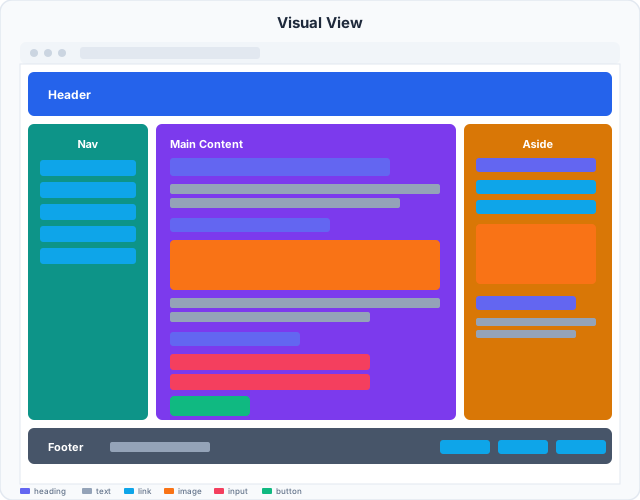
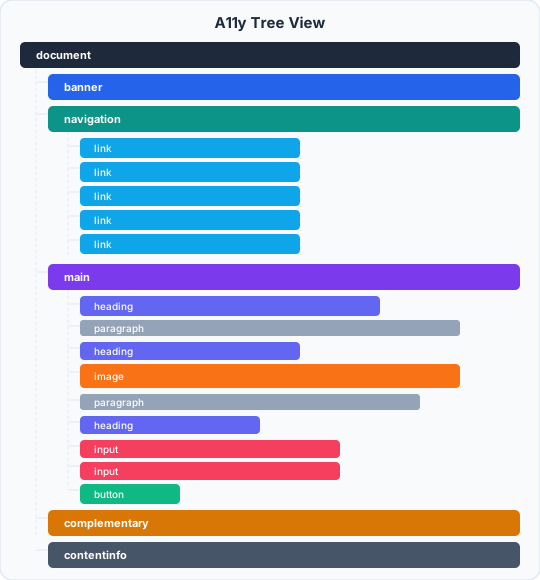
Left: what sighted users see. Right: what assistive technology reads. Same content — different structure.
What you see
Each node represents one meaningful element in the accessibility tree. For each one, you'll see:
- Role — What kind of thing it is.
button,heading,textbox,listitem,dialog,navigation,region… This comes from the HTML tag or an explicitroleattribute. - Name — What it's called. The label that gets announced. This is what makes the difference between hearing "button" and hearing "Submit order".
- State — What condition it's in. Checked or unchecked. Expanded or collapsed. Disabled. Selected. Required.
How the A11y view differs from the DOM view
The DOM view shows every HTML element. The A11y view filters and transforms:
- Presentational elements disappear. A
<div>used only for layout with no role or text shows up in DOM but not in A11y. Same for<span>, empty containers, and elements withrole="presentation"oraria-hidden="true". A focusable element, or one carrying a global ARIA property, is the exception — ARIA says to ignorerole="presentation"there, so it stays with its implicit role. - Semantics win over markup. A
<div role="navigation">and a<nav>element look different in DOM but both appear asnavigationin A11y. - Names are computed, not just copied. The name shown is the result of the full accessible name algorithm — not just the
aria-labelattribute, but the winner of a priority contest between label elements,aria-labelledby,aria-label,title, and text content.
What to look for
Interactive elements with no name
This is the single most common issue. An icon-only button, a link with no text, a form input with no visible label — these show up in the A11y view with a role but an empty name.
button (no name)A screen reader user hears: "button". No context. They have to guess what it does, or give up.
The fix: Add visible text, an aria-label, or link the element to a visible label with aria-labelledby. If the button has an icon, the icon needs an alt or aria-label.
Everything is generic
The generic role is what <div> and <span> get when they have no semantic role. If your A11y tree looks like:
generic
  generic
    generic
      button  "Add to cart"
…the screen reader has no structural context around that button. No landmarks to jump to, no headings to navigate by. Sighted users can scan visually; screen reader users navigate by structure.
The fix: Use landmark elements (<main>, <nav>, <header>, <aside>) and semantic elements (<h1>–<h6>, <ul>, <button>, <a>) to give the tree shape.
Heading levels that jump
Headings are how screen reader users navigate long pages — they Tab through headings the same way sighted users scan titles. If you jump from an h1 directly to an h3, users navigating by heading lose their place in the hierarchy.
heading  "Our Products"  (level 1)
heading  "Featured Items"  (level 3)   ← skipped level 2
The fix: Heading levels should only increase by one at a time. Use CSS to control visual size — don't pick a heading level based on how big it looks.
Images with no name
An <img> without an alt attribute, or with alt="" when the image conveys meaning, shows up in the A11y tree with no name. Decorative images should genuinely be decorative — if it communicates content (a product photo, a chart, a badge), it needs a description.
ARIA states that don't match reality
An accordion <button> with aria-expanded is good. An aria-expanded that never changes when the accordion opens is a bug — the A11y tree will say "collapsed" while the panel is visually open. The A11y view will catch this: look at the state and ask whether it matches what you see on screen.
aria-expanded belongs on the control that opens something: a button, link, tab, combobox, menu item, tree item, row or grid cell. On a list box, a radio, a heading or a text field the browser ignores it, so the A11y view shows no state there. If a state you set doesn't show, move it to the trigger. A <details> has no state of its own either; its <summary> reports whether it is open.
A button that opens a popover with popovertarget (or commandfor and a popover command) needs no aria-expanded at all: the browser reports it expanded while the popover shows and collapsed otherwise, and ignores an aria-expanded that says something else. The A11y view shows the browser's answer.
Elements that should be in the tree but aren't
If a custom widget isn't showing up with the right role — or isn't showing up at all — it may be aria-hidden, visually hidden but also hidden from AT, or built with markup that doesn't carry semantic meaning. The A11y view makes absences visible.
A <header> or <footer> that isn't there
Not every missing node is a bug. A <header> or <footer> directly under <body> is a landmark (banner / contentinfo). Inside <main>, <article>, <aside>, <nav> or <section> it isn't: HTML-AAM maps it to sectionheader / sectionfooter instead, and lets browsers leave it out when it has no name, isn't focusable and carries no other ARIA attribute. The A11y view follows that rule, so this markup:
<main>
  <header><h1>Select-Only Combobox Example</h1></header>
</main>
shows the heading straight under main:
main
  heading  "Select-Only Combobox Example"  (level 1)
Give the header a name (aria-label, aria-labelledby or title) and it appears as sectionheader "…" with the heading nested inside. The DOM view always shows it.
Reading a well-structured tree
A healthy A11y tree looks something like this:
banner  "Site header"
  navigation  "Main"
    list
      listitem  →  link  "Home"
      listitem  →  link  "Products"
      listitem  →  link  "About"
main
  heading  "Featured Products"  (level 1)
  list
    listitem  →  article  "Blue Widget"
      heading  "Blue Widget"  (level 2)
      button  "Add to cart"
contentinfo  "Site footer"
Landmarks structure the page. Headings create hierarchy. Interactive elements have meaningful names. Nothing generic where something semantic belongs.
Quick sanity checks
Run through these any time you open the A11y view on an unfamiliar component:
- Do all interactive elements have a name?
- Is the heading outline logical — one
h1, no skipped levels? - Do landmark regions cover the whole page (no orphaned content outside
main,nav, etc.)? - Do ARIA states on collapsibles, dialogs, and toggles match the current visual state?
- Are there any
genericcontainers where a landmark or semantic element belongs?